Using conch
Mac app
Conch.app shows the TUI's agents and terminals in a native macOS window; closing it stops nothing.
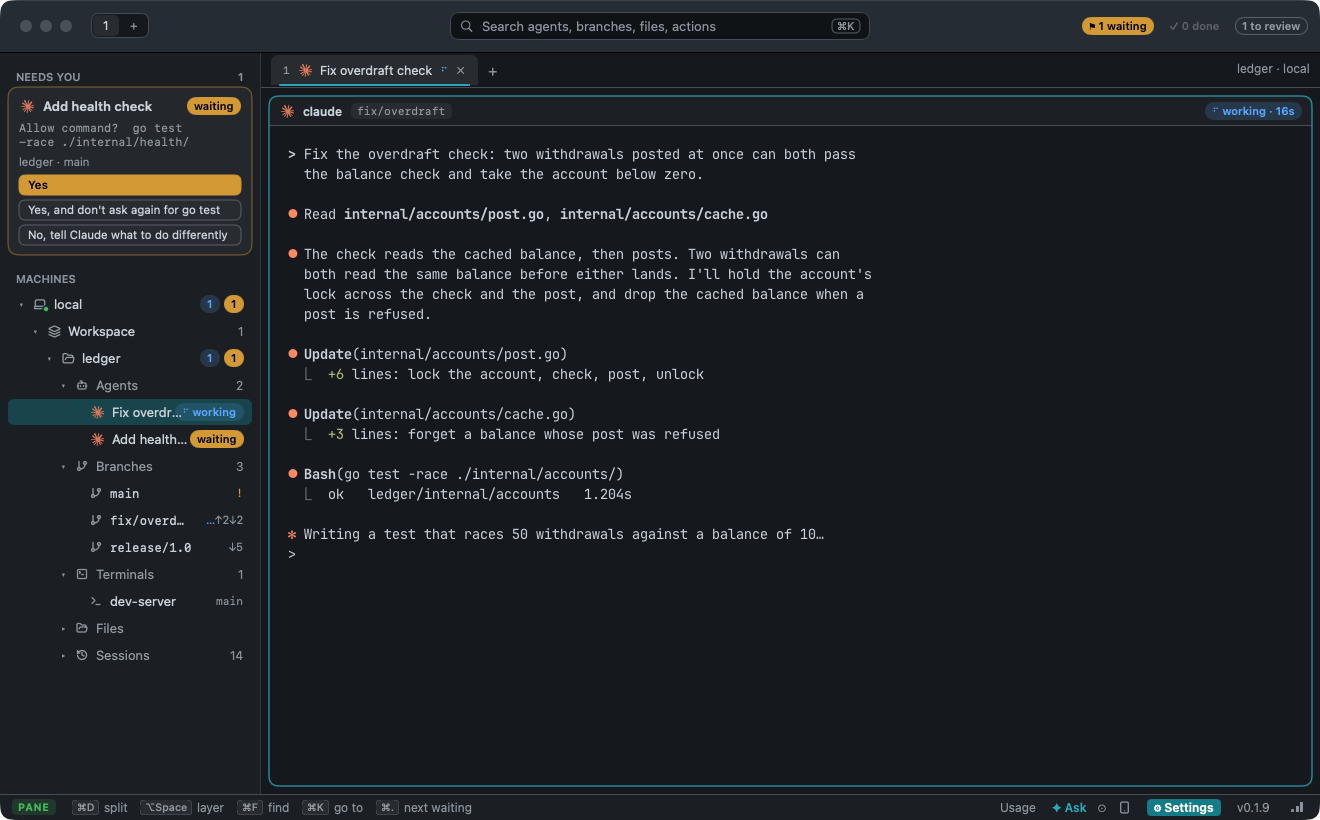
Needs you
A branch's changes
Files and sessions
Workbench
Browser tabs
Commits
Tickets
System Monitor
The window
The sidebar is conch's tree; tabs and splits work as in the TUI.
Windows: ⌥⌘N, or Open in New Window on a workspace or project.
Background: a scene, or your own: Settings → Mac app → Background.
How: click a row to open it, right-click for its menu. ⌘. finds the next waiting agent, ⌃⌘S hides the sidebar.
Teams: right-click an agent → Team, or drag it to a team.
Settings
How: ⚙ in the status bar, or ⌘,. View → Theme and View → Style change the look. Agents installs agents.
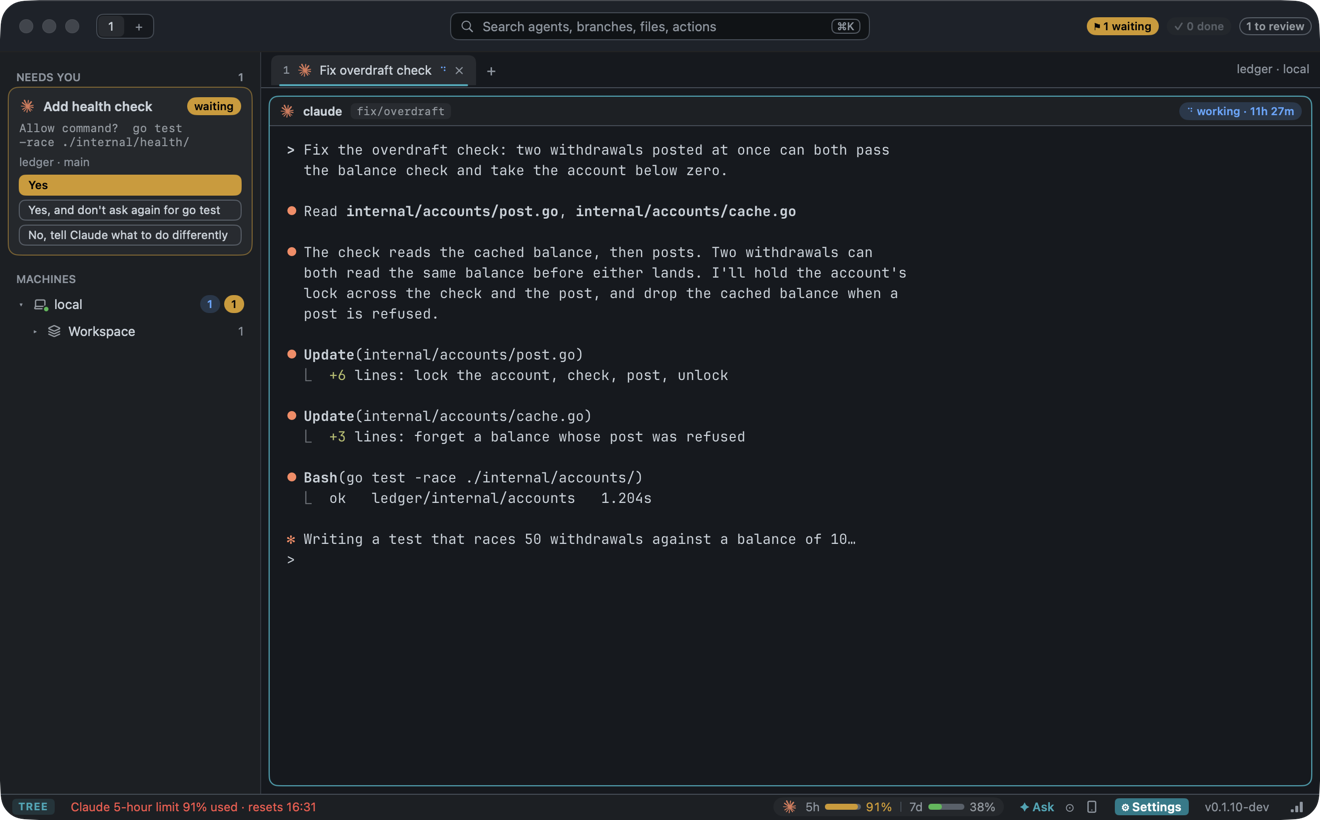
Plan limits
The status bar shows each agent's plan use.
Panes drawn by Ghostty
Panes are drawn by Ghostty; one sized by another window is letterboxed.
How: Take it, or type, to size it here.
The scratch layer
A shell floating over the splits.
How: ⌥Space shows or hides it, ⌥⌘↩ docks it as a split, ⌥⌘T makes it a tab.
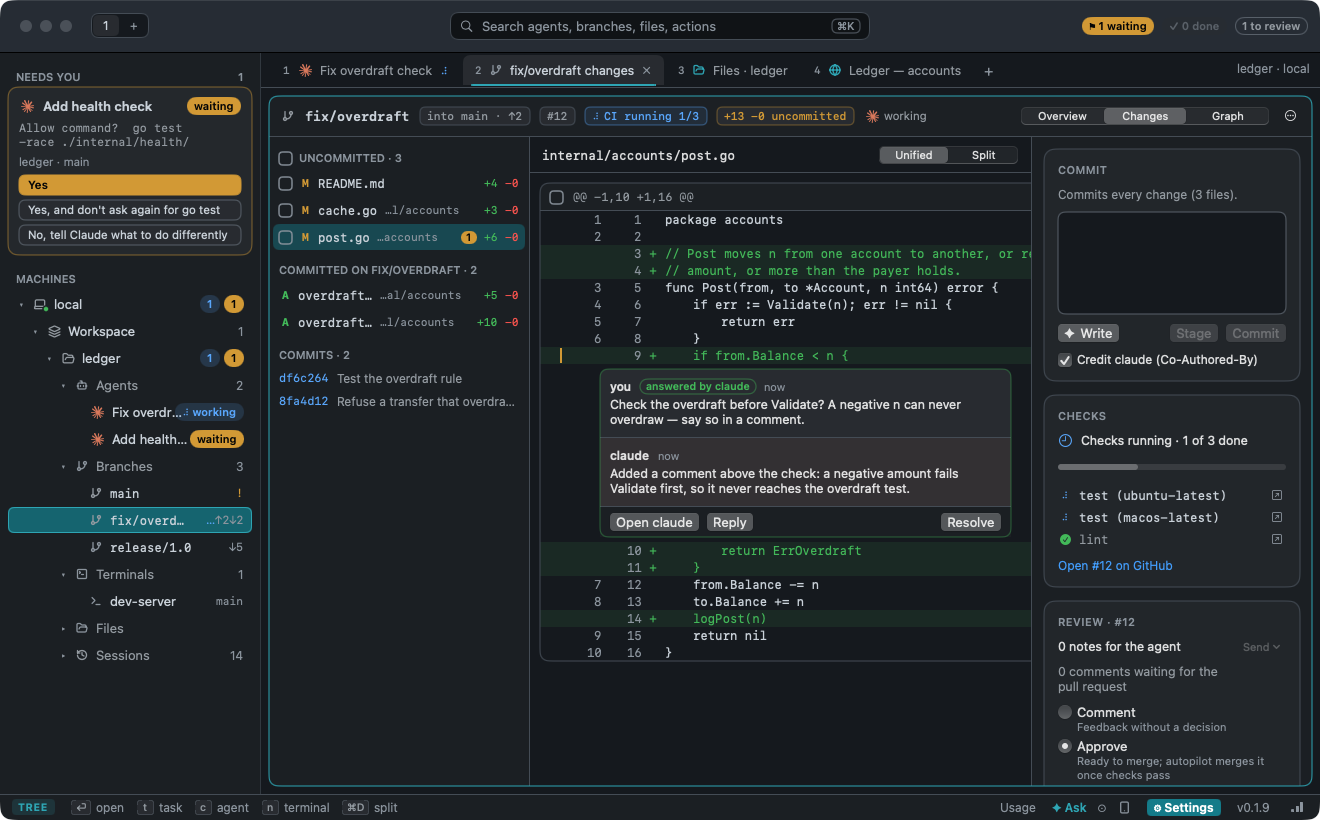
A branch's changes
A branch opens in a tab. Tick hunks, then Commit; ✦ Write drafts a message; + leaves a note.
How: ⋯ holds Push, Merge…, Open Pull Request and Delete Branch….
Agent setup
What each agent loads in a checkout.
How: Agent setup on a project's menu.
Left running
An agent that left a dev server running shows idle · 2 running.
How: hover it for each command; click it to stop one.
Answering an agent without opening it
Each waiting agent is a card under Needs you, its choices as buttons.
How: click a choice to answer, or the card to open it.
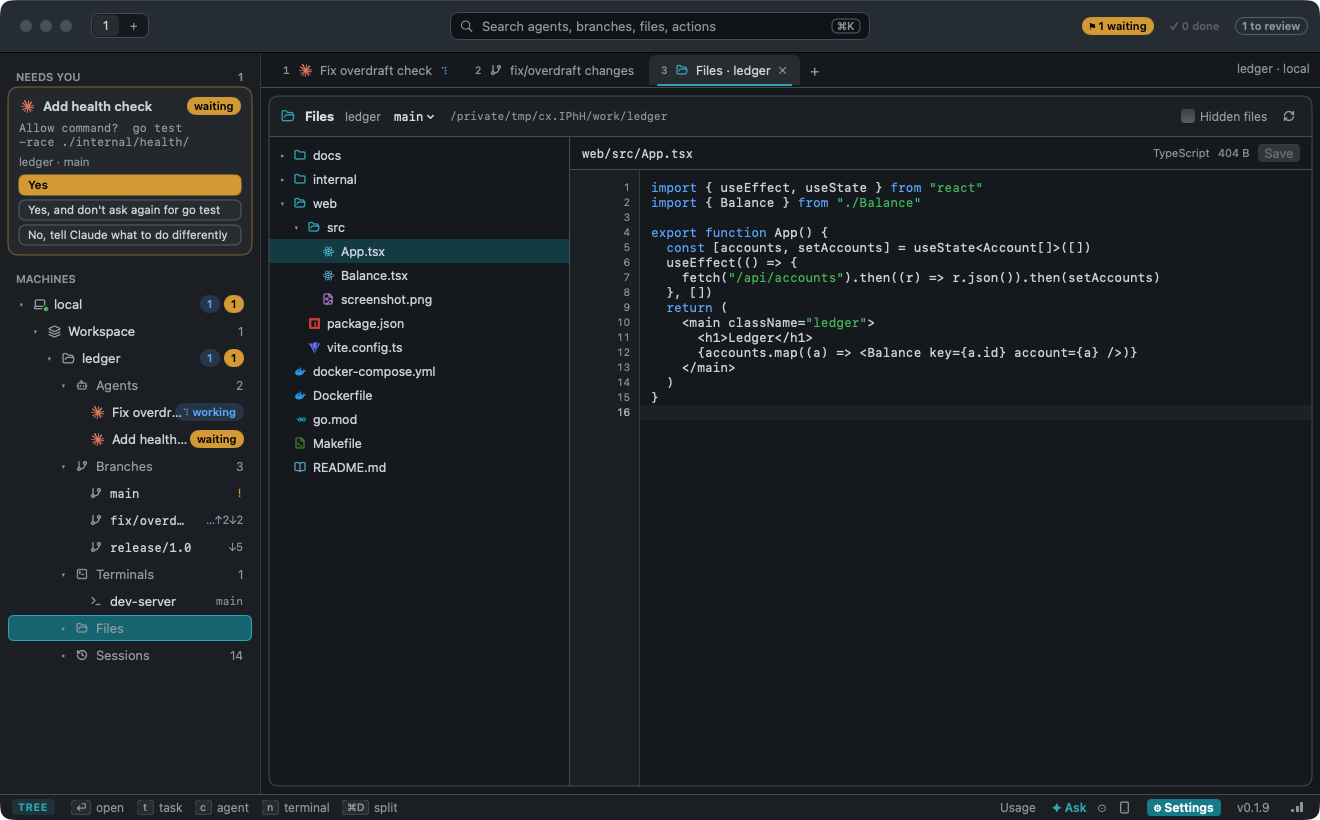
Files and sessions
Files edits the checkout; Sessions resumes saved conversations.
| Keys | |
|---|---|
⌘S | save |
⌘P | go to a file |
⇧⌘F | search the project |
⌥⌘F | find and replace |
⌘I | edit with an agent |
Workbench
An agent's files, a terminal and its chat in one tab.
How: ⌥⌘B, or right-click an agent → Open Workbench; ⌥⌘1–⌥⌘5 pick a layout.
The chat: attach files with ⇧⌘A. Off: [app] chat = false.
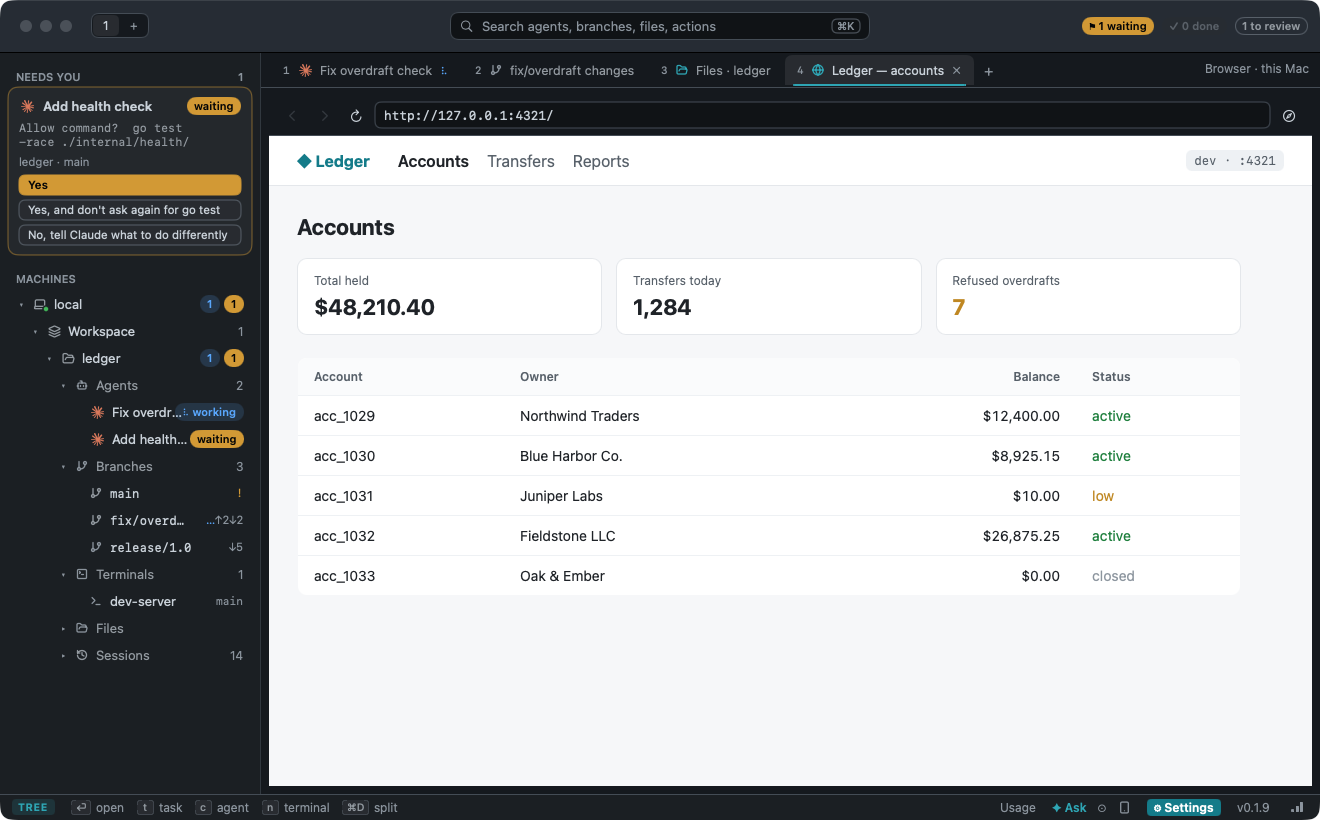
Browser tabs
A web page in a tab beside the agents.
How: File → New Browser Tab (⇧⌘B).
Commits
Agents' branches, conflicts, CI, Autopilot.
How: Commit Graph on a project's or branch's menu.
Starting agents and tasks
How: File → New Task… (⌘N), File → Start Agent (⇧⌘N), Add Project… (⌘O).
System Monitor
CPU, memory, disk and the heaviest processes, on any machine conch reaches.
How: ⌥⌘M, or the expand icon on the ▁▃▆ monitor.
Tickets
Every project's issues and tickets, by Mine, Ready for conch, Needs info and conch is on it.
How: ⇧⌘I. Setting up Linear or Jira: Tickets.
Keys
| Keys | |
|---|---|
⌘K | search |
⌘T / ⌘D | new terminal tab / split |
⇧⌘↩ | zoom the focused split |
⌘F | find in the pane |
⌥⌘M | the System Monitor |
⇧⌘I | Tickets |
⌥⌘N / ⌘` | new window / next window |
⌘W | close the split (the pane runs on) |
⌘1–⌘9 | go to a tab |
⌘0 | the sidebar takes the keyboard |
⌘/ | every keyboard shortcut |
The TUI's ctrl+b prefix keys work too.
Installing the beta
Download Conch_<version>_macos_arm64.zip from the releases; it needs Apple Silicon and macOS 14+.
How: unzip it into Applications; Conch → Check for Updates… updates it.
Building it
# needs Xcode's Command Line Tools and Go; Ghostty also Xcode 26 and Zig
macos/ghostty.sh                 # Ghostty's library → macos/vendor
macos/bundle.sh                  # → macos/build/Conch.app